How to Scan Receipts on iPhone: 3 Ways Compared
Your iPhone can scan receipts three ways: as a document in the Notes app, as a PDF in the Files app, or with a dedicated AI receipt scanner that turns the photo into an actual expense record. All three work - they just answer different questions. Here is each method, step by step.
Method 1: Scan receipts with the Notes app (free, built in)
- Open Notes and create or open a note.
- Tap the paperclip icon, then Scan Documents.
- Hold the camera over the receipt; it captures automatically.
- Tap Save. The receipt is stored as a document inside the note.
Good for: archiving a single important receipt (a warranty, a big purchase).
The catch: you get a picture, not data. No amount, no merchant, no category, no running totals - and finding one receipt among fifty notes later is painful.
Method 2: Scan receipts with the Files app (free, built in)
- Open Files and browse to a folder.
- Tap the three-dot menu, then Scan Documents.
- Capture the receipt and tap Save. It lands as a PDF.
Good for: dropping receipt PDFs into an existing folder system (say, synced to a cloud drive for an accountant).
The catch: same as Notes - the PDF knows nothing about what you spent. Every total still has to be typed into a spreadsheet by hand.
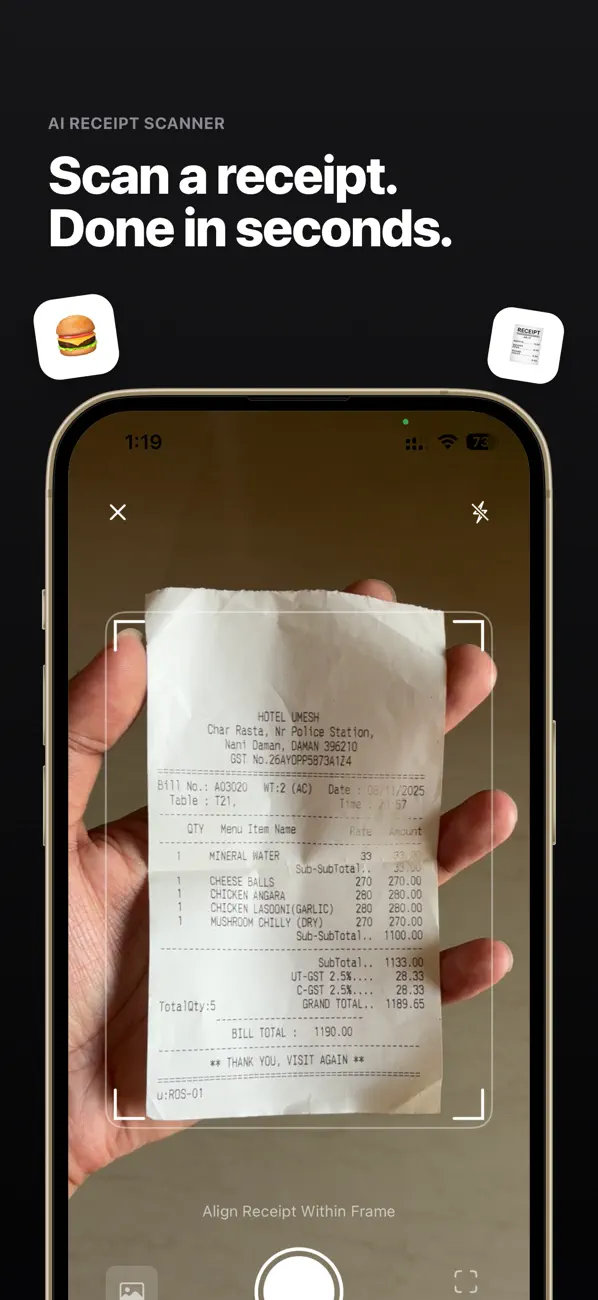
Method 3: Scan receipts with an AI receipt scanner (free, does the work for you)
If you scan receipts because you track expenses - for taxes, business records, or budgeting - a dedicated scanner replaces both the capture and the data entry:
-
Open Receeto
Free on the App Store. No account or sign-up - it opens ready to scan.
-
Point the camera at the receipt
Printed, thermal, crumpled, angled - the scanner detects it automatically.
-
AI extracts everything
Merchant, total, date, and category are filled in on-device in seconds, using Apple Intelligence. Works fully offline.
-
Review and save
Confirm the details and save. The expense is categorized, searchable, counted in your monthly totals, and exportable as CSV or ZIP with the image attached.
Which method should you use?
| Notes / Files | AI scanner (Receeto) | |
|---|---|---|
| Captures image | Yes | Yes, attached to the expense |
| Extracts amount, merchant, date | No | Yes, automatically |
| Categorizes and totals | No | Yes, 14 categories + budgets |
| Searchable expense history | No | Yes, instant search |
| Export for taxes / accountant | Manual | CSV + ZIP in two taps |
| Works offline | Yes | Yes, fully on-device |
One-off archive: use Notes. Ongoing expense tracking: use a scanner that does the data entry for you - that is the entire reason to digitize receipts in the first place.
Scan your first receipt in under a minute
Free download. Point, scan, done - the AI handles the rest.

Free download · No account · Works offline